MOJIOKO
AI transcription and subtitles for videos, stream archives, and vertical clips
Free
- All core features are free: transcription, editing, subtitle text export, and subtitle video export.
- Includes one font family, Noto Sans JP. Weights are selectable across 9 steps, Thin to Black.
Installer approx. 243 MB
DownloadPaid
- All features are available.
- Create subtitles with 12 additional distinctive fonts provided by MOJIOKO.
- Some experimental features are available.
- Available from the Microsoft Store, with automatic updates so you always have the latest version.
System Requirements
- OS:Windows 10 / 11 (64-bit)
- Memory:16 GB or more recommended
- Storage:10 GB or more free space recommended (includes AI model downloads)
- GPU (optional):Faster processing with an NVIDIA GPU (CUDA). Also runs on CPU without a GPU.
What this tool does
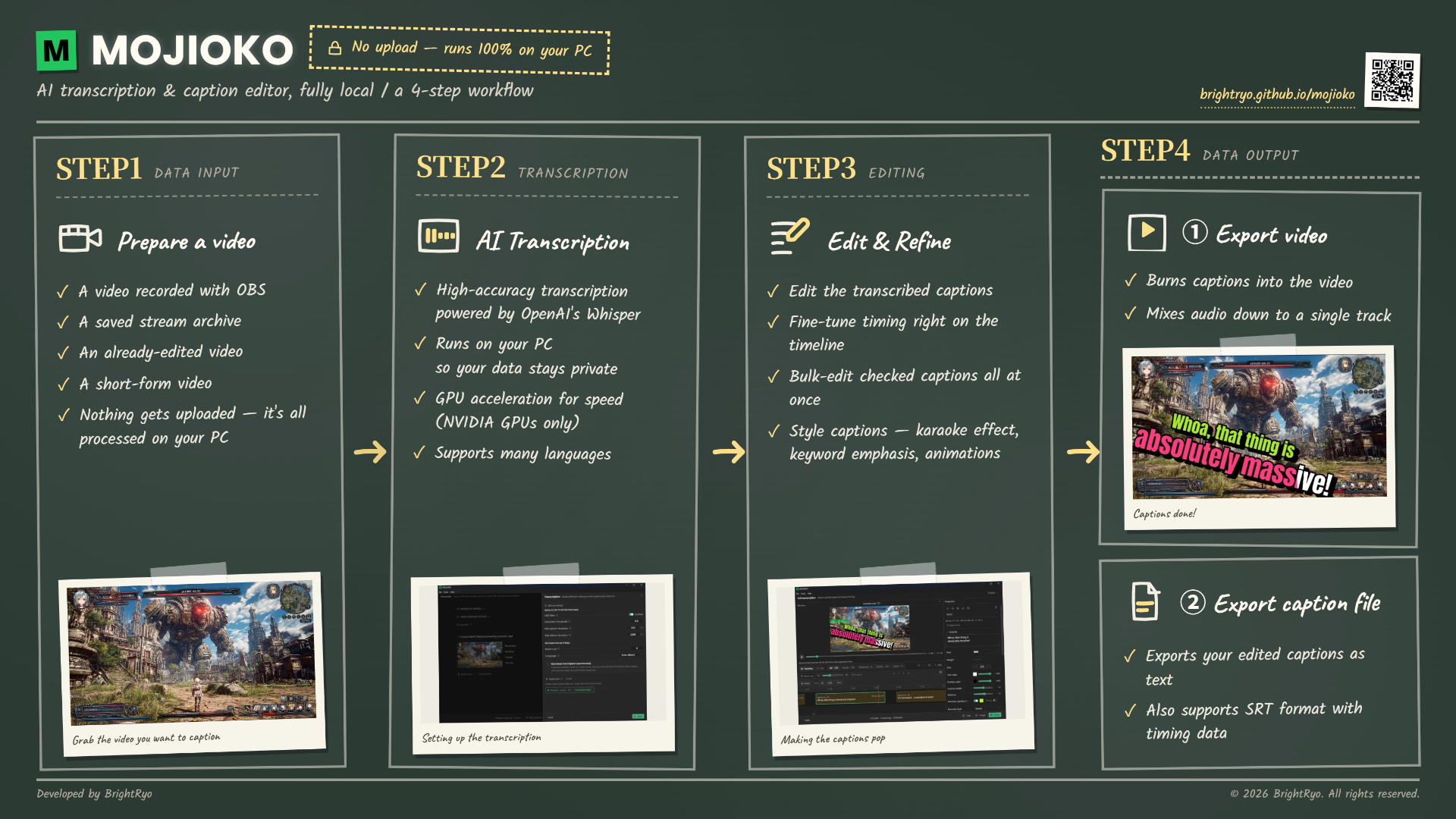
MOJIOKO is not a video editor
It cannot insert images, apply transitions, or join clips together.
Use it after your video editing is finished, as the last step.
What you can make
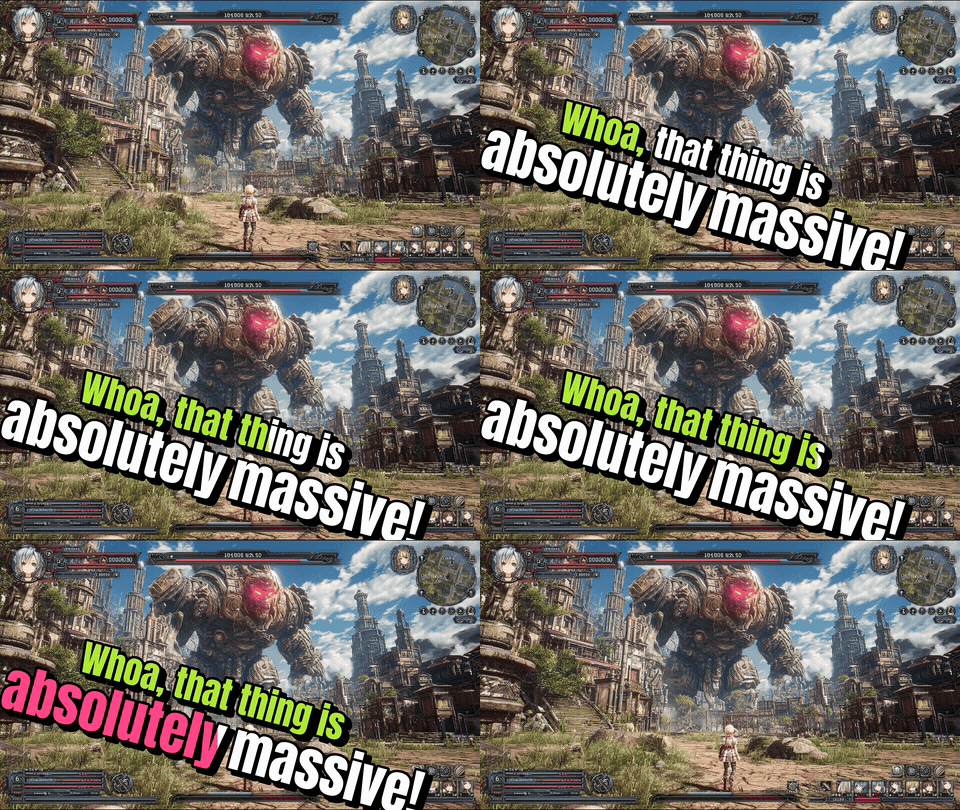
Three things that define MOJIOKO
Your video is never uploaded
Transcription and subtitle burn-in both happen entirely on your own PC.
Note: the app connects to the internet only to download AI models and additional fonts. If you enable AI integration (v1.4.0), subtitle text and file paths are sent to your AI assistant's provider — the video itself is not. DetailsNot a subscription
The free edition stays free. The paid edition is a one-time purchase — there is no monthly fee.
A Windows desktop app
No browser, no account sign-up.
What's new in v1.4.0
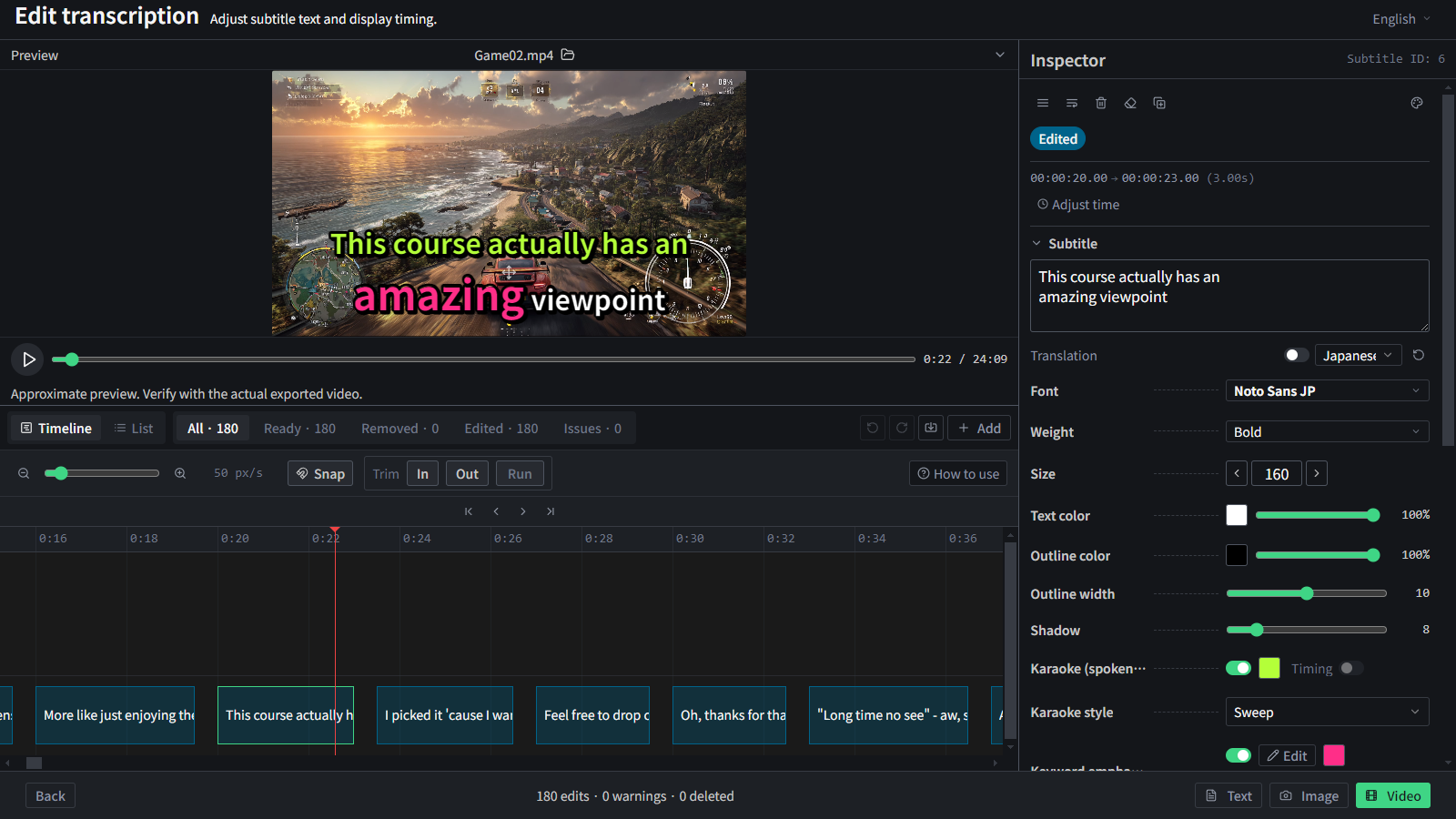
Keyword emphasis, and styling per subtitle
Make the words that matter stand out in their own colour and size. Font, size, colour, outline, shadow, rotation, line spacing and the background box can all differ from one subtitle to the next.
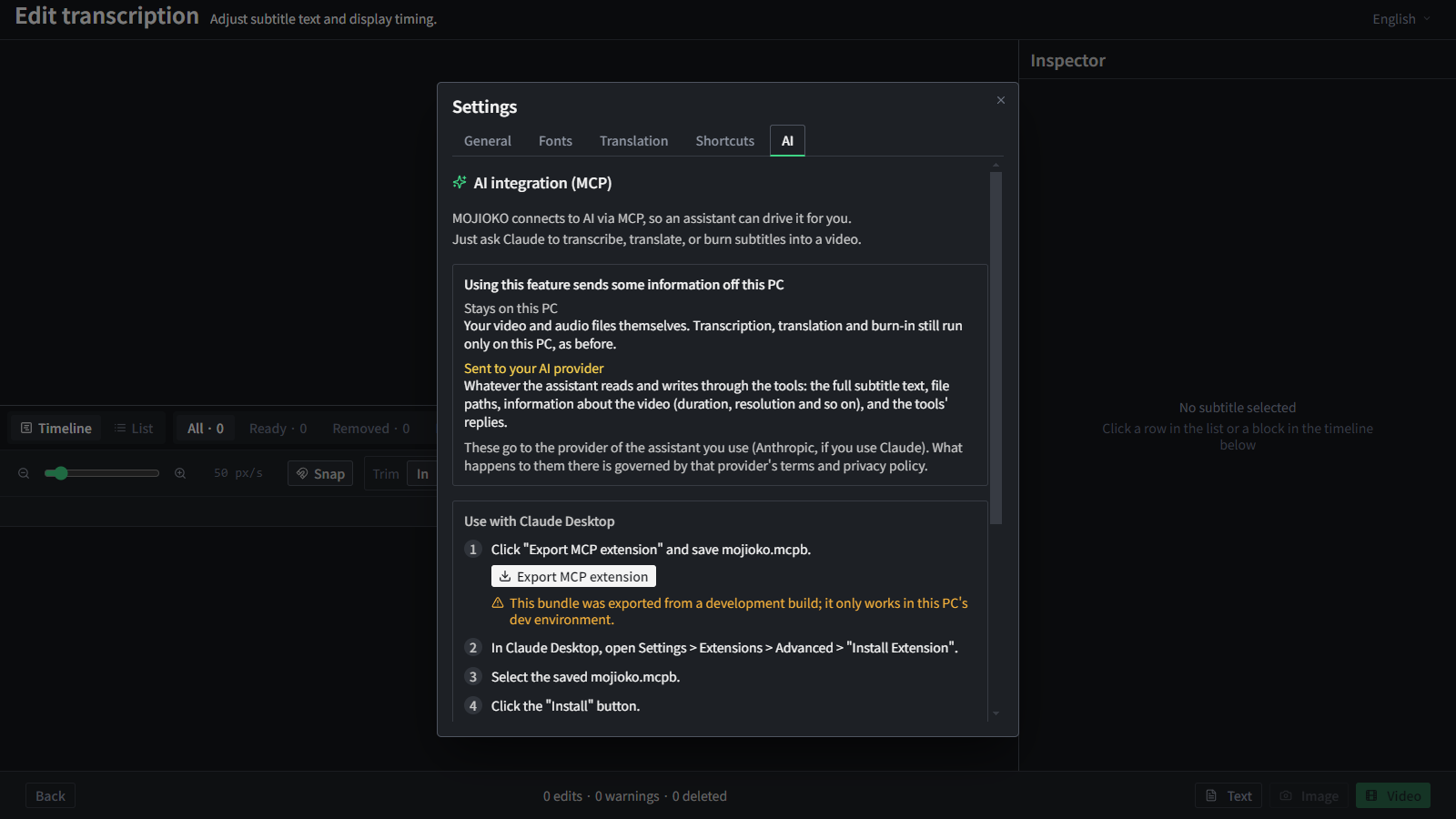
AI integration (MCP)
Ask an assistant like Claude to "add subtitles to this video" and it runs the whole job — transcription through burn-in. It can do the subtitle editing for you too.
Note: turning this on means the information the assistant reads and writes — subtitle text, file paths, and the video's details — is sent to your AI assistant's provider. The video and audio files themselves stay on this PC. You are asked to confirm every time. Details
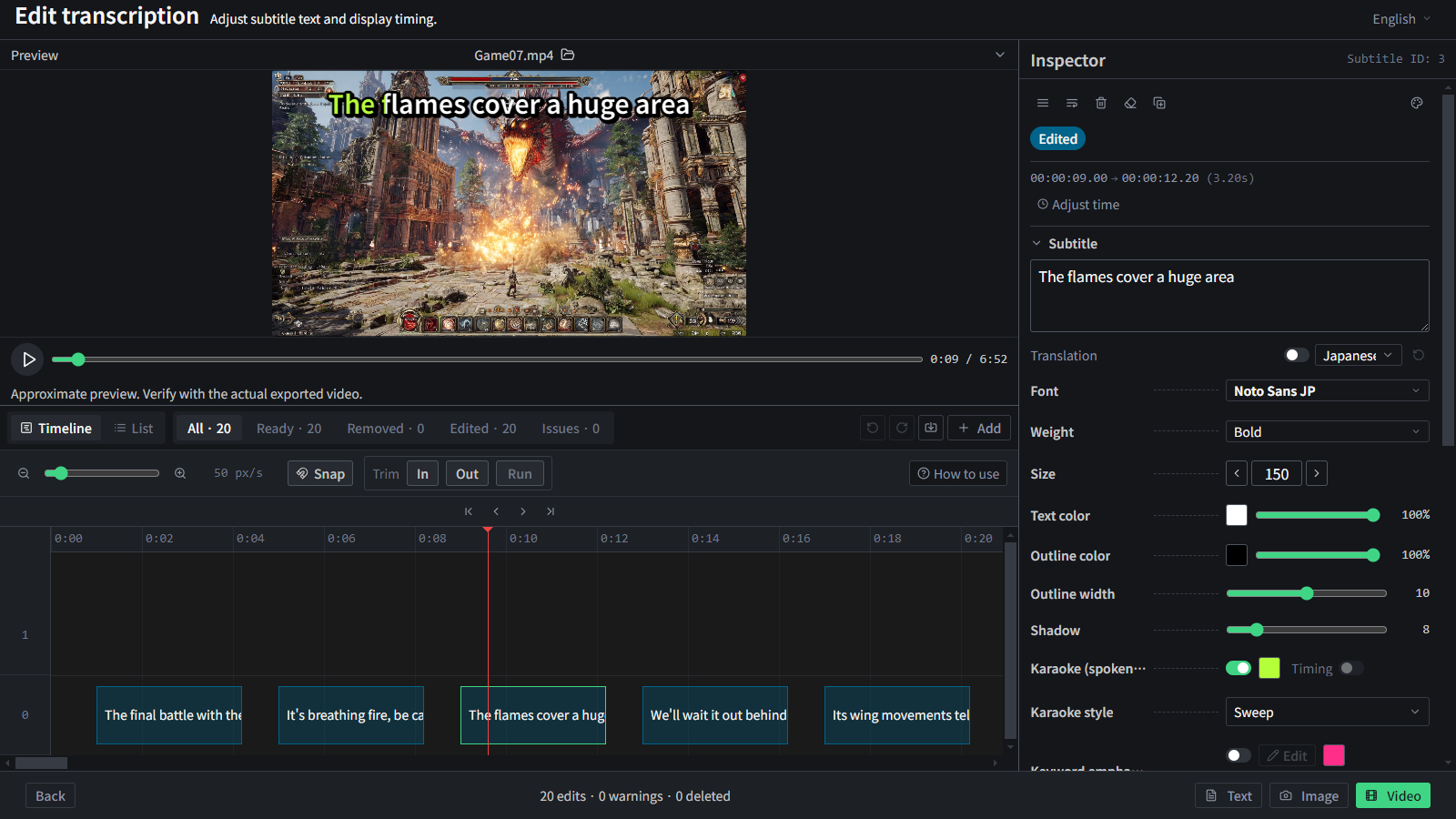
What you see is what you burn
Drag a subtitle in the preview and that is exactly where it lands in the exported video. MOJIOKO also asks before closing with unsaved work, and settings are now written in a way that cannot be left half-finished.
Main features
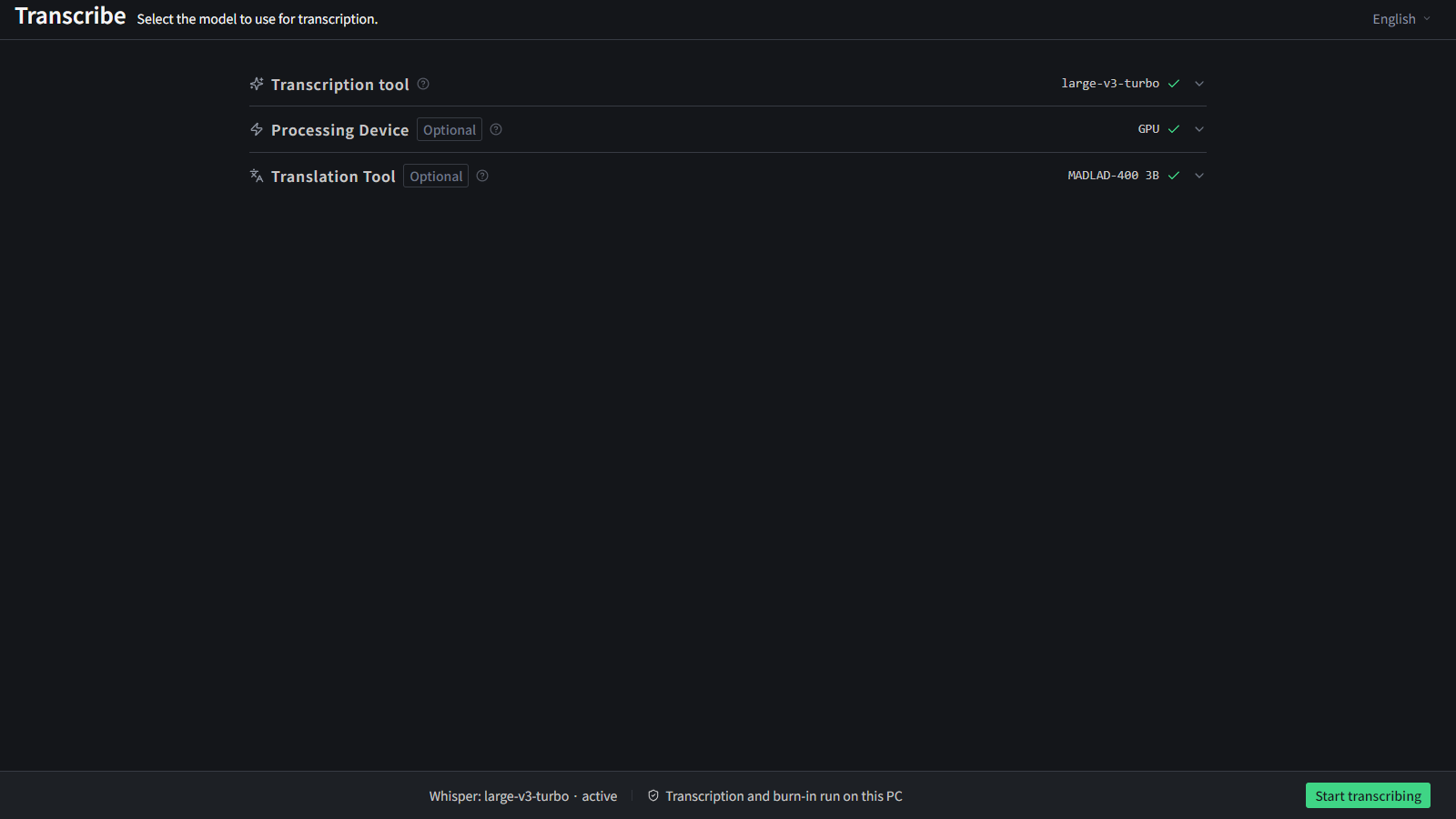
High-accuracy automatic transcription
Automatically transcribe speech from video or audio using Whisper, a high-accuracy speech-recognition AI developed by OpenAI. Even long videos are transcribed into text in one go.
Works with both video and audio files. For videos with multiple audio tracks, you can pick which track to transcribe.
💡 Multiple audio tracks?Videos where different sounds — like game audio and mic voice — are recorded separately. MOJIOKO lets you transcribe just the voice.
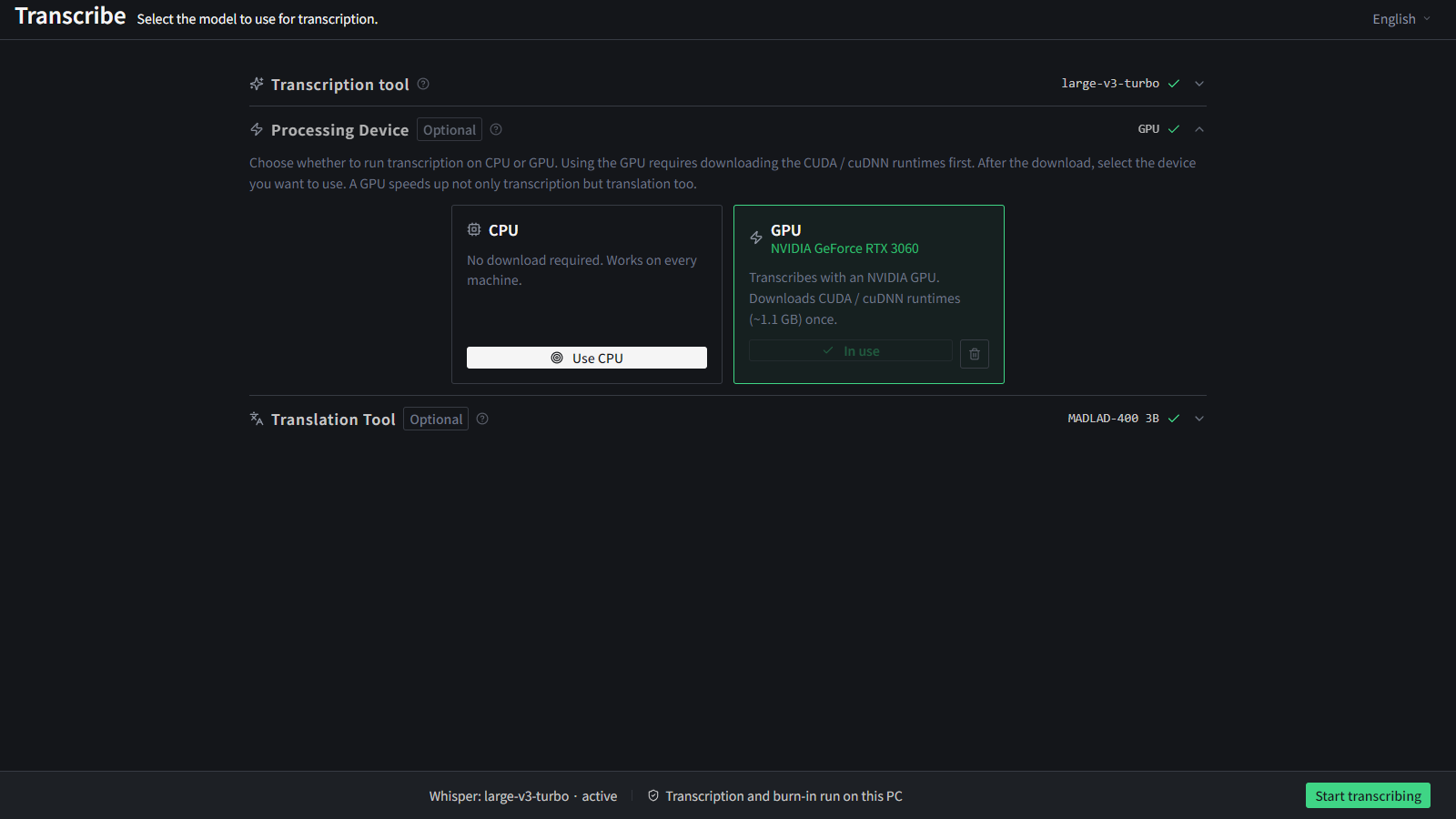
GPU acceleration
Run Whisper on an NVIDIA GPU for significantly faster transcription. Even long videos finish in a fraction of the time compared to CPU.
The CUDA / cuDNN runtime (~1.1 GB) downloads once from inside the app on first use — no separate CUDA install required.
A GPU is optional; MOJIOKO runs on CPU without one. The latest NVIDIA generations, including RTX 50 series (Blackwell), are supported.
💡 Limitations & detailsNVIDIA GPUs only (AMD / Intel GPUs are not supported). See the GPU acceleration section of the User Guide for details.
Flexible subtitle editing
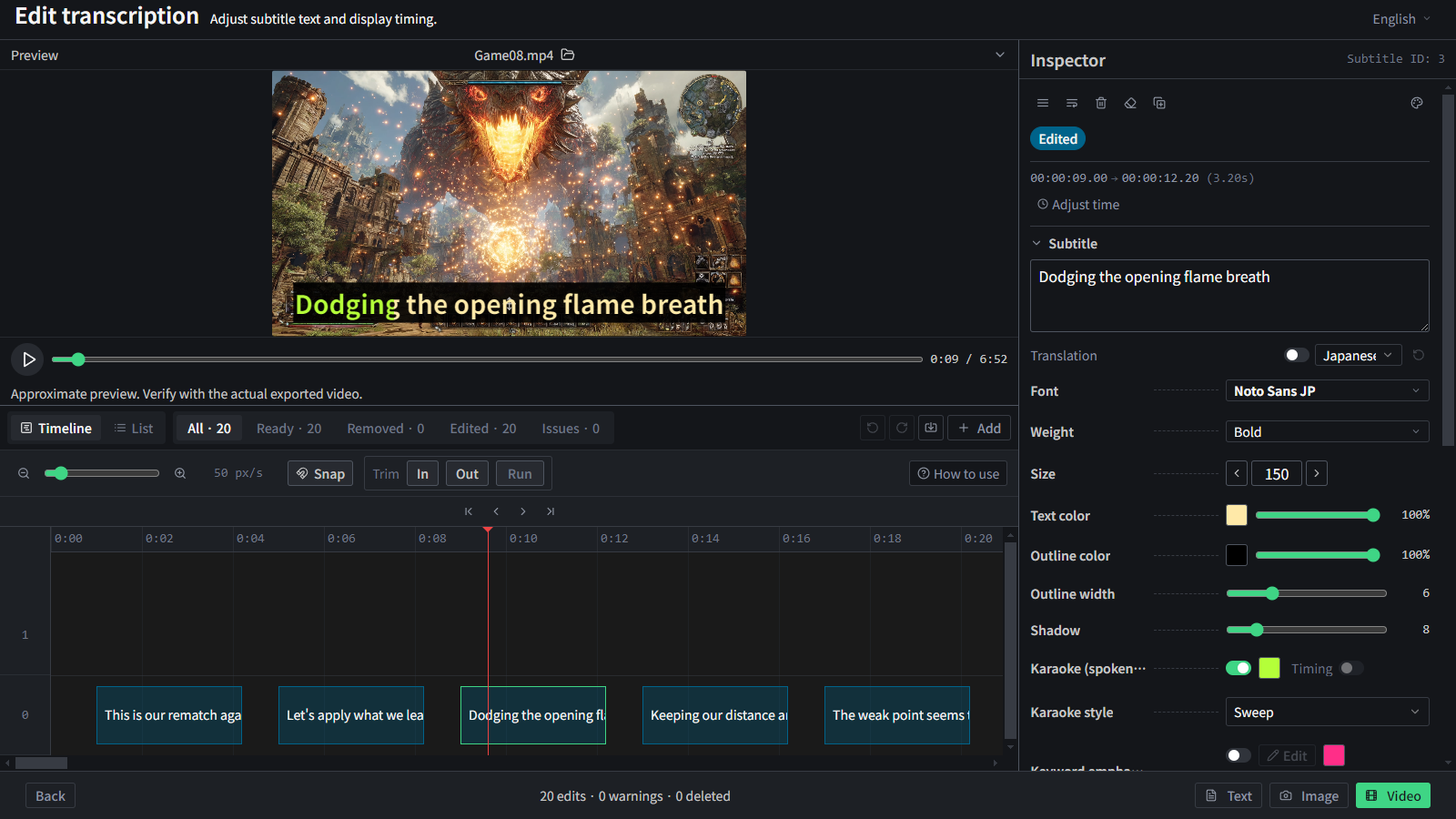
Edit text and appearance freely
Fix the transcribed text, and adjust the font, size, color, and outline color/thickness.
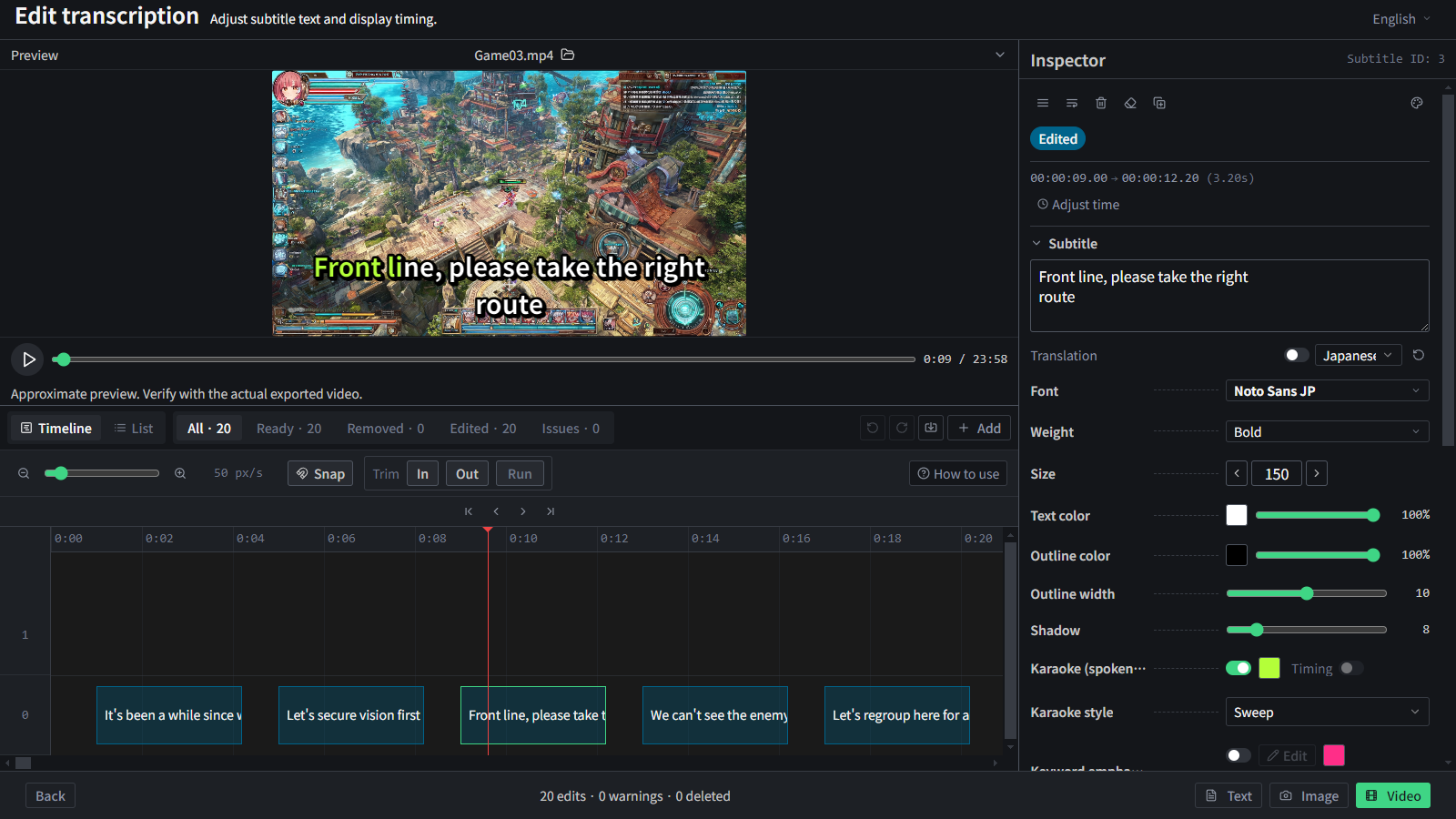
Adjust timing on the timeline
Drag to change how long each subtitle stays on screen.
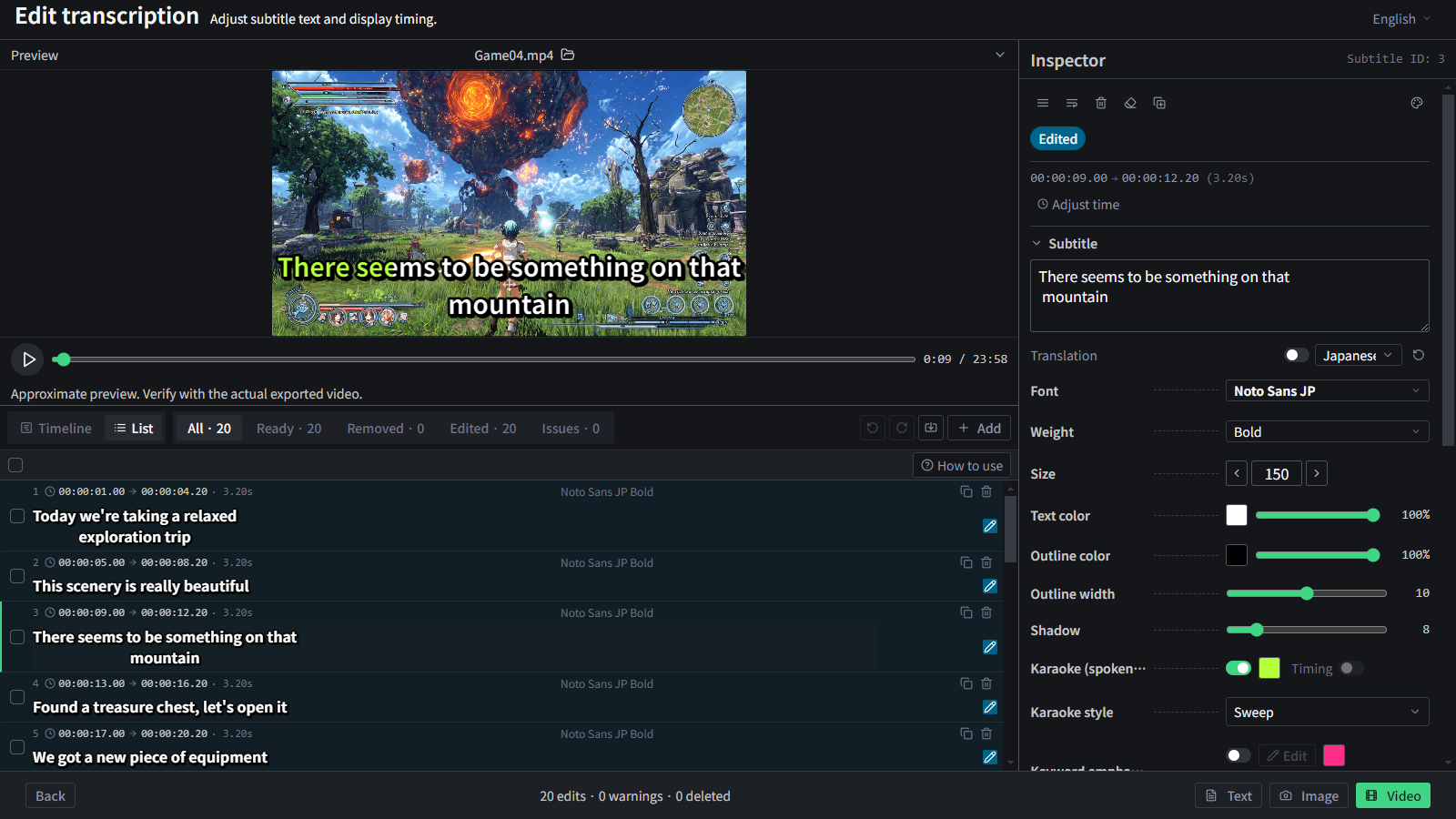
Review and edit in a list view
See all subtitles at once and edit them in bulk. It stays quick even with thousands of subtitles.
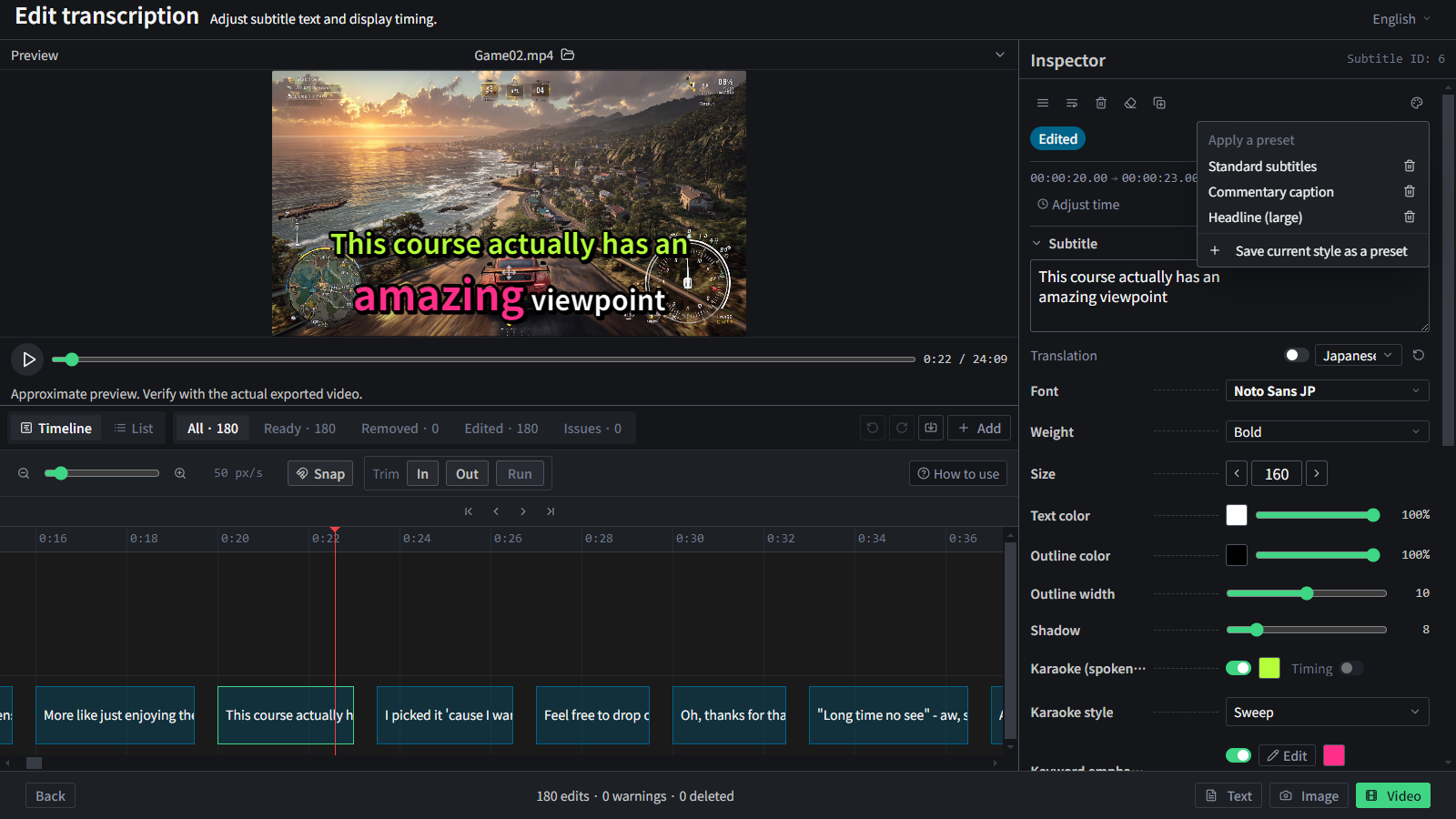
Reuse a look with style presets
Save a look you have built and apply it to other subtitles in one click.
💡 Timeline?A horizontal bar showing the flow of time in your video, so you can edit when each subtitle appears.
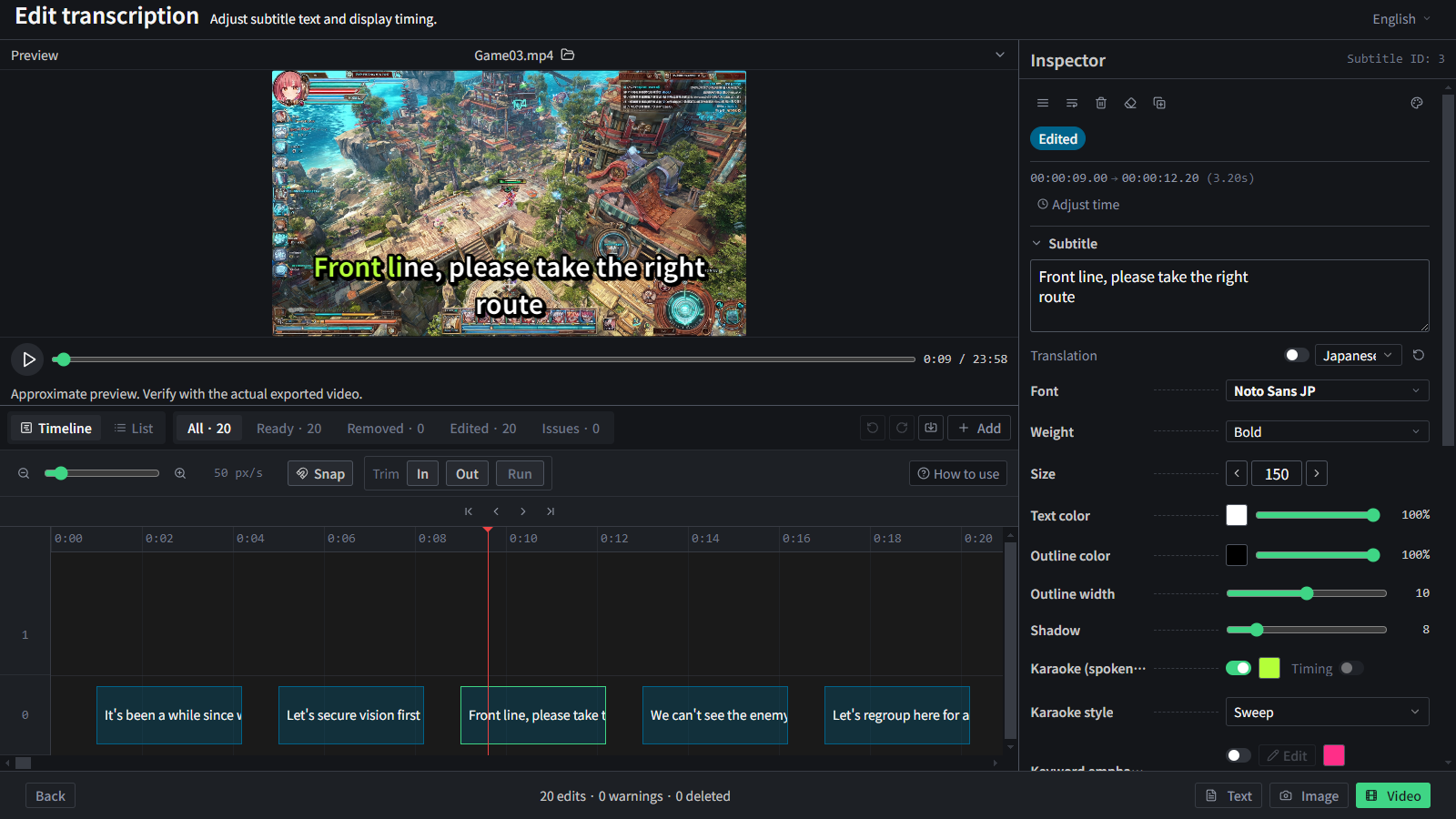
Export as text or SRT
Export the transcription as a plain text file or in SRT format.
With SRT, import subtitles — complete with start/end times — into video editors like DaVinci Resolve.
You can also load the exported text into speech tools like VOICEVOX to generate voices.
💡 SRT?The standard subtitle file format, pairing each line of text with its on-screen timing. Supported by most video editors and platforms.
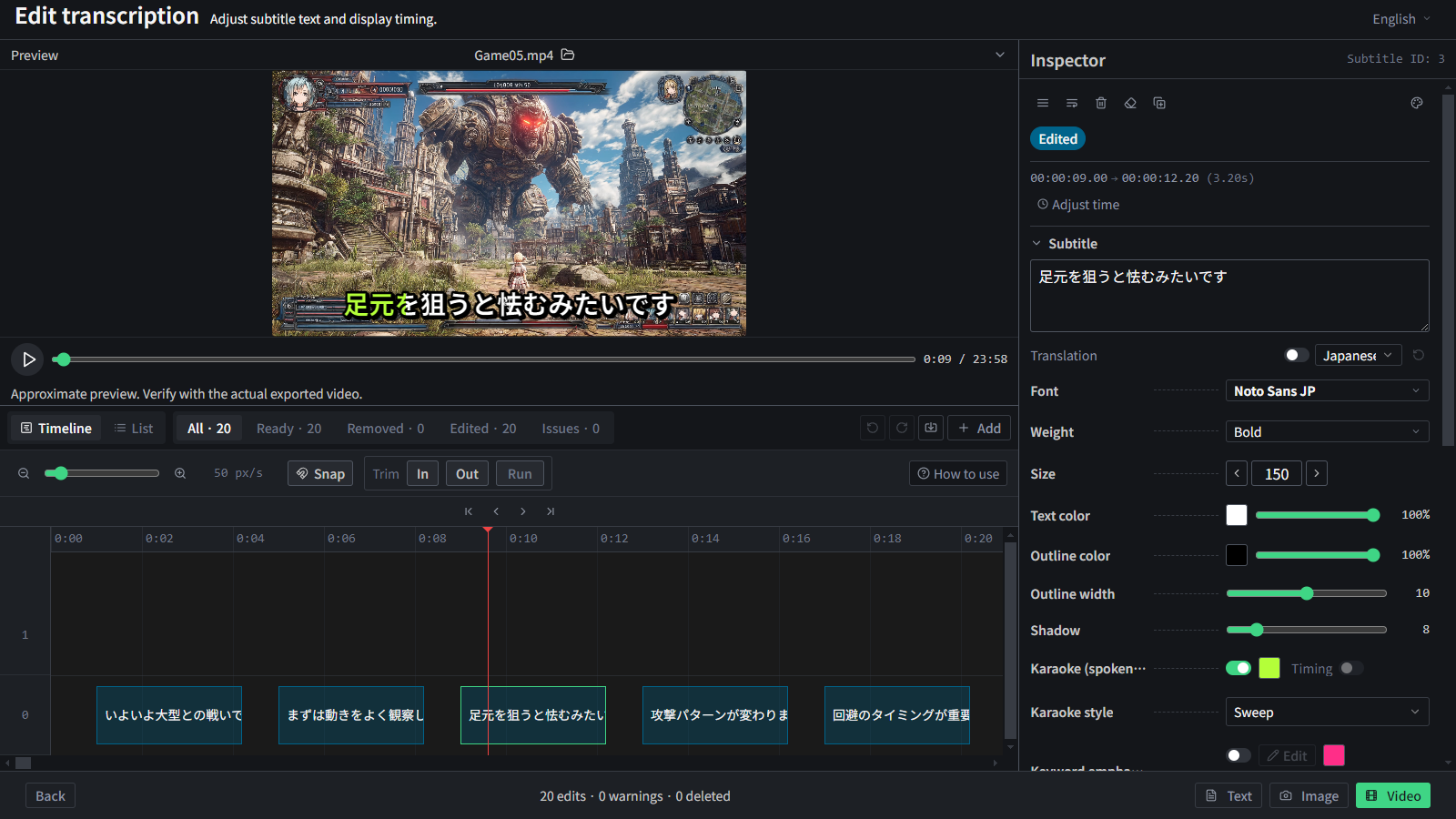
Above: English subtitles translated into Japanese
Multilingual subtitles (translation)
Download the optional MADLAD-400 translation AI, developed by Google, and translate your finished subtitles into another language in one click or in bulk. Many languages are covered, including Japanese and English in both directions.
Translation runs on this PC. No subtitle text is sent anywhere in order to translate it, and a GPU makes it faster still.
💡 NoteThe translation tool is an optional download. Skip it and nothing is installed — the app stays the same size.
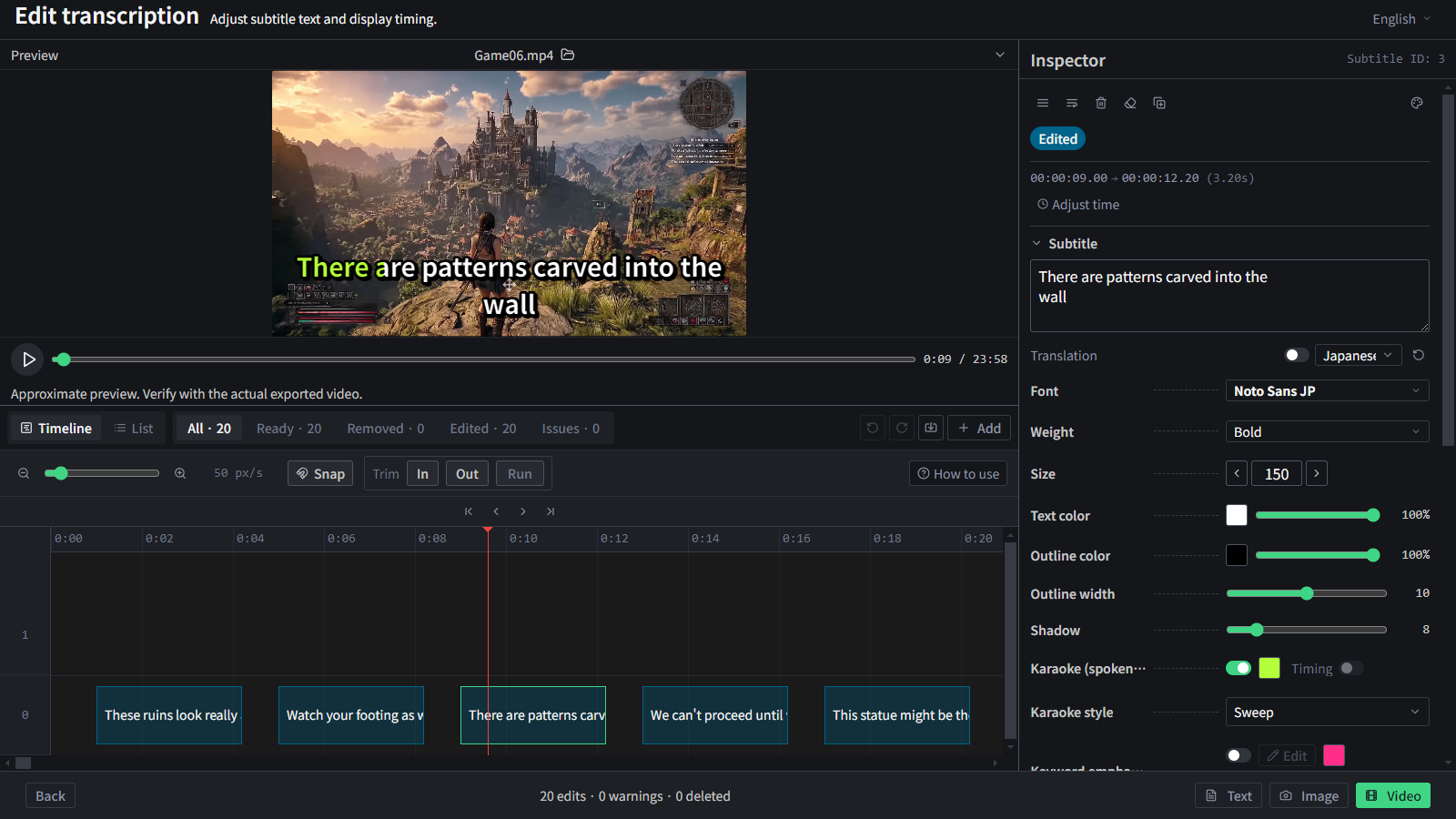
Burn in subtitles and export video
Burn your edited subtitles directly into the video.
Merge multiple audio tracks into one. Burn subtitles into your already-edited video and export it in a form you can upload as-is.
💡 Burn-in?Embedding subtitles into the video itself, so they always show on any player.
Support this Project
MOJIOKO is free to use. If you find it helpful, please consider supporting its development.
Buy Me a Coffee
Global / No account needed / From $3
BOOTH (Japan only)
PayPay / Convenience store / Credit card / From ¥300
GitHub Sponsors
One-time or recurring / GitHub account required